An SEO audit checks everything that decides whether your site gets found: can search engines reach your pages, will they index them, do the pages answer what people actually search for, and does the site have enough authority to rank. The useful output is short. A list of fixes in order of value, not a 200-row export from a tool.
This is the process we use. It works on a 20-page brochure site in a day or two and scales to large sites with more time, and most of it needs only free tools.
What an SEO audit covers
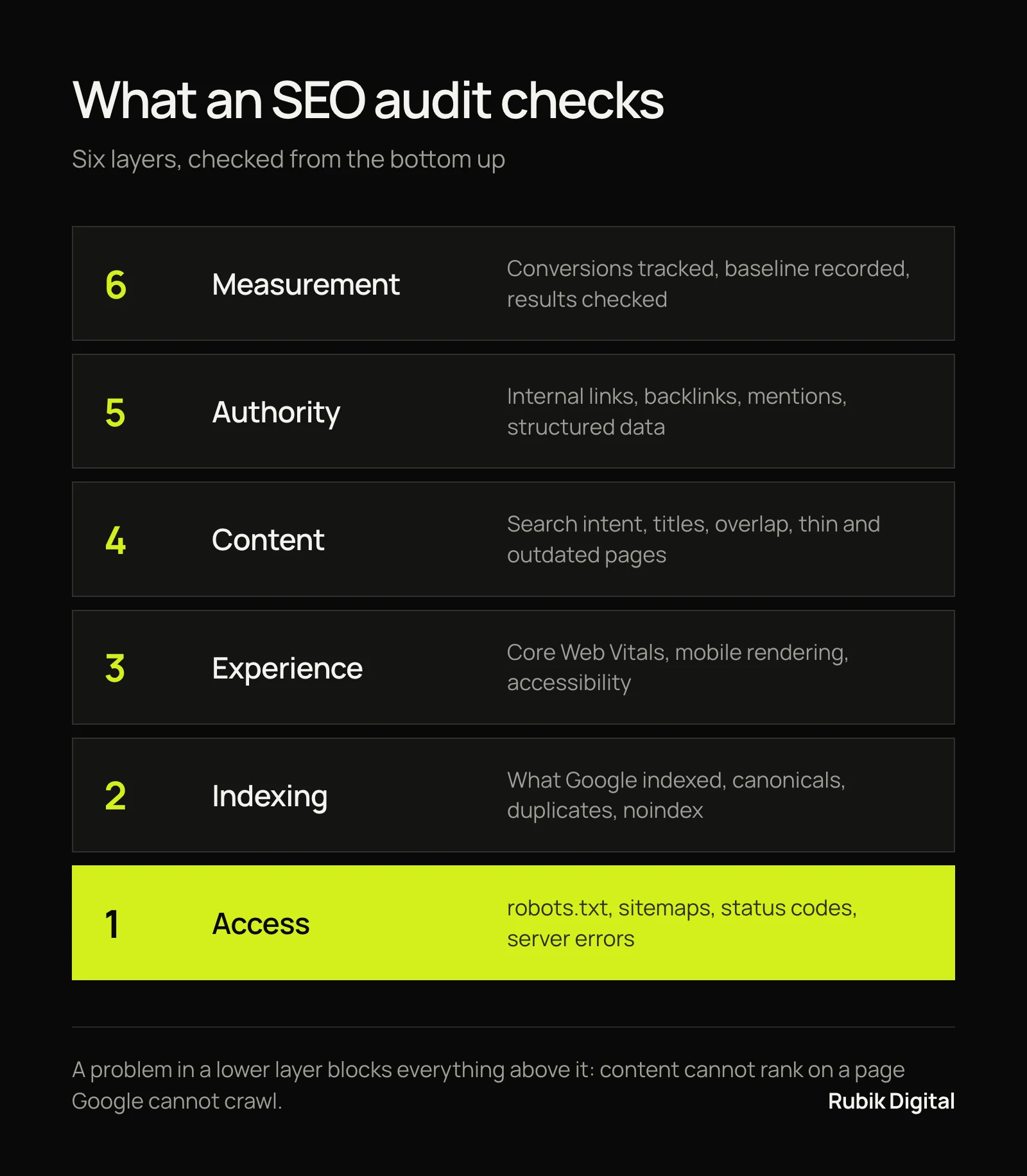
The order matters. Brilliant content will not rank if a robots.txt rule blocks it, and a fast site with nothing worth reading will not either. That is why the steps below start with access and indexing and finish with content, links and measurement.
The tools you need
| Tool | Cost | What you use it for |
|---|---|---|
| Google Search Console | Free | Indexing, queries, pages, Core Web Vitals field data, manual actions |
| Bing Webmaster Tools | Free | A second view of crawling and indexing, plus Bing and Copilot data |
| Google Analytics 4 | Free | Landing pages, engagement and whether organic visits turn into enquiries |
| PageSpeed Insights | Free | Lab and field performance for individual URLs |
| Screaming Frog SEO Spider | Free up to 500 URLs, paid licence above | Crawling: status codes, titles, canonicals, internal links, redirects |
| Semrush or Ahrefs | Paid | Competitor rankings, backlinks and keyword gaps |
If you are new to Search Console, start with our Google Search Console guide. It is the single most useful source in an audit because it shows what Google itself has seen.
Step 1: Set the goal and pull a baseline
Decide what the audit needs to answer before you open a tool. "Why did traffic fall in March?", "What will a redesign put at risk?" and "Why do we rank but get no enquiries?" lead to different amounts of work.
Then export a baseline from Search Console: clicks, impressions and position by page and by query for the last 16 months, which is as far back as it goes. Note your top 20 pages by clicks and your top pages by enquiries in GA4. Check that enquiries are actually being recorded as conversions; an audit that cannot measure leads cannot prove anything. If traffic has dropped, our guide to why Google traffic drops helps narrow down the cause.
Step 2: Crawl the site
A crawler visits your site the way a search engine does and records what it finds. Crawl the live site, then export:
- Every URL with its status code (200, 301, 404, 500).
- Pages with a noindex tag or a canonical pointing somewhere else.
- Missing, duplicate or very long titles and meta descriptions.
- Internal links that point to redirects or broken pages.
- Click depth: how many clicks each page sits from the homepage.
Compare the crawl with your XML sitemap and the pages in Search Console. Pages that get impressions but do not appear in the crawl are orphans: nothing on the site links to them.
Step 3: Check robots.txt, sitemaps and access
Open your robots.txt file and read every rule. A single "Disallow: /" left over from a staging site can hide a whole website. Search Console's robots.txt report shows which version Google last fetched and whether it had errors.
Your XML sitemap should list only the pages you want indexed: canonical URLs that return a 200 status. Sitemaps full of redirects, 404s and noindexed pages tell search engines the list cannot be trusted.
Check access for AI crawlers too. Some sites block GPTBot or other AI crawlers by accident through a firewall or a copied robots.txt rule. Whether you block them is a business decision, but it should be a deliberate one. Our research on AI crawlers and Googlebot explains what each one does.
Step 4: Check what Google has indexed
A page can be crawlable and still not be indexed. The Page indexing report in Search Console lists every reason. The ones that matter most in an audit:
| Status | What it usually means | What to do |
|---|---|---|
| Excluded by noindex tag | A noindex tag is on the page | Remove it if the page should rank |
| Crawled, currently not indexed | Google saw the page and chose not to index it | Improve or merge thin and duplicate pages |
| Discovered, currently not indexed | Google knows the URL but has not crawled it yet | Add internal links; check server speed on large sites |
| Duplicate, Google chose different canonical | Google picked another URL as the main version | Consolidate duplicates and align canonical tags |
| Soft 404 | The page looks empty or like an error page | Add real content or return a proper 404 |
Use URL Inspection on your most important pages to see the indexed version, the canonical Google chose and the rendered HTML. If key content is missing from the rendered HTML, it may be loaded by JavaScript that Google is not running.
Step 5: Fix status codes, redirects and canonicals
- Broken links. Fix internal links that point to 404s. Redirect deleted pages that still have backlinks to their closest replacement.
- Redirect chains. Google follows up to 10 hops but recommends redirecting straight to the final URL. Update old redirects so each goes there in one step.
- Internal links to redirects. Point internal links at the final URL so search engines and visitors do not take a detour.
- Duplicate versions. The http, https, www and non-www versions and trailing-slash variants should all resolve to one URL.
- Canonical tags. Each page should point to itself or to the version you want indexed, never to a redirect or a noindexed page.
Step 6: Check speed and Core Web Vitals
Start with the Core Web Vitals report in Search Console. It uses real visitor data, grouped by template, so one slow template shows up as hundreds of URLs. Google's thresholds for a good score are:
| Metric | Measures | Good |
|---|---|---|
| Largest Contentful Paint (LCP) | How quickly the main content appears | 2.5 seconds or less |
| Interaction to Next Paint (INP) | How quickly the page responds to taps and clicks | 200 milliseconds or less |
| Cumulative Layout Shift (CLS) | How much the layout jumps while loading | 0.1 or less |
Then test the worst templates in PageSpeed Insights to find the cause: oversized hero images, render-blocking scripts, heavy third-party tags or a slow server. Our guides to Core Web Vitals and website speed test tools go deeper.
Step 7: Check mobile and rendering
Google indexes the mobile version of your site, so anything missing on mobile is missing for Google. Google retired its standalone Mobile-Friendly Test in December 2023; use Lighthouse in Chrome and the rendered HTML in URL Inspection instead.
Check that menus, tabs and accordions contain the same content as desktop, that links are real anchor links rather than click handlers, and that important text is in the HTML rather than inside images. Then use the site on a real phone: tap the main calls to action, fill in a form and read a long page.
Step 8: Review titles, descriptions and headings
Titles are still one of the clearest signals of what a page is about, and they decide whether people click. In Search Console, look for pages with a good average position but a low click-through rate. Those are usually the quickest wins: the page ranks, but the title does not match what people searched for.
Check every important page has a unique title, a description that sells the click, and one H1 that matches the topic. Our guide to meta tags for SEO covers what to write and what Google ignores.
Step 9: Review content against search intent
Search the main query for each important page and look at what ranks. If Google shows guides and your page is a sales page, or it shows prices and your page has none, the format is wrong, however well it is written.
Then look for problems across the site:
- Overlapping pages. Two pages getting impressions for the same query split the signals between them. Merge them or make their topics clearly different.
- Thin pages. Pages with little unique content, such as near-identical location pages, rarely get indexed or ranked.
- Outdated pages. Old prices, dates and screenshots cost trust. Update them, or redirect pages that no longer have a purpose.
For a deeper look at quality, see our articles on AI content versus human content and building a content strategy.
Step 10: Check internal links and structure
Internal links tell search engines which pages matter. Your main service pages should be reachable within two or three clicks of the homepage and linked from the guides that discuss their topic, with anchor text that describes the destination.
Look for orphan pages, important pages buried four or five clicks deep, and guides that attract traffic but link nowhere useful. Adding a handful of relevant links from high-traffic guides to the right service pages is often the cheapest improvement in the whole audit.
Step 11: Review backlinks and mentions
Compare the number of sites linking to you with the sites that outrank you. If competitors have three times as many relevant referring domains, on-page fixes alone will not close the gap. Look for links pointing to old URLs that now 404 and redirect those pages to recover the value.
You rarely need to disavow links. Google says most sites never need to, and the tool is meant for cases such as a manual action for unnatural links. Our guide to backlinks explains what makes a link worth having.
Step 12: Check structured data and AI search readiness
Test key templates in Google's Rich Results Test. Structured data should describe what is visible on the page, such as the organisation, articles, products and breadcrumbs. Markup for content visitors cannot see is a policy violation.
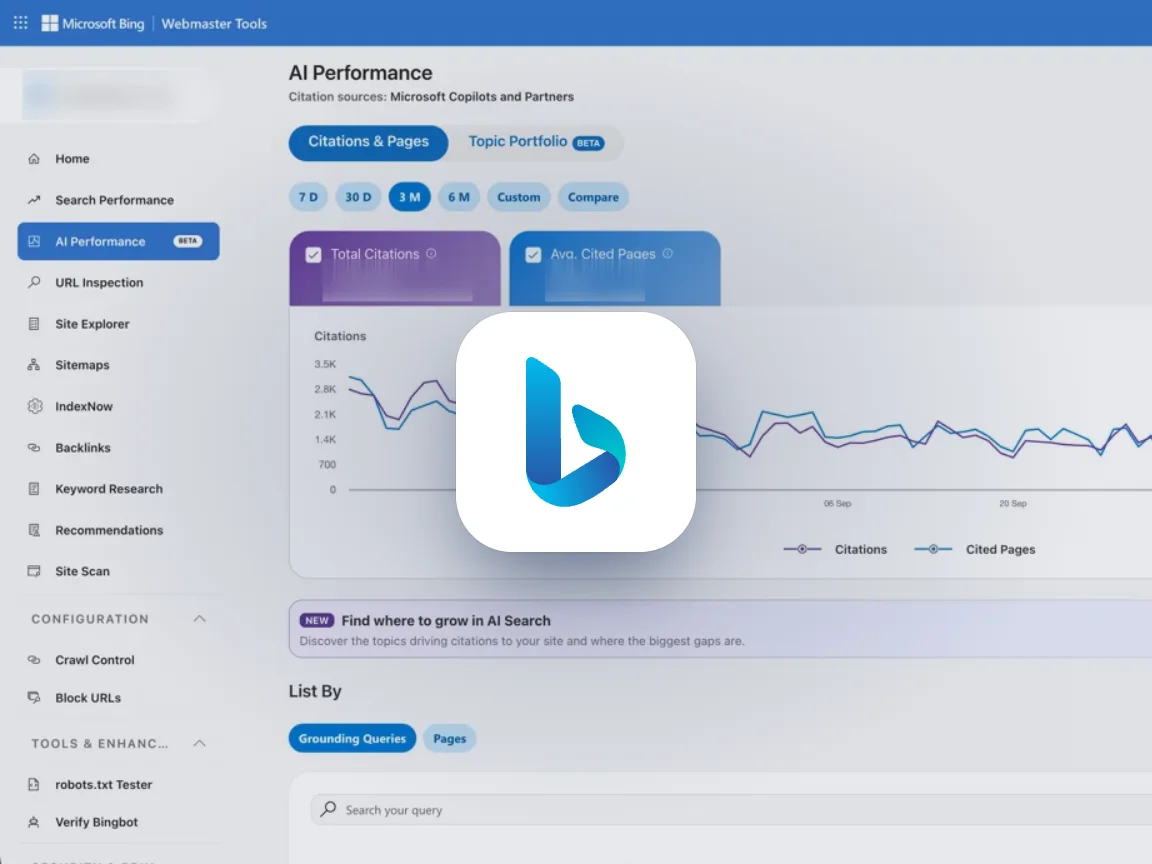
For AI search, Google says there are no extra requirements to appear in AI Overviews or AI Mode: a page needs to be indexed and eligible to show a snippet. So check that important pages do not carry nosnippet or restrictive max-snippet rules, that they answer the question near the top, and that your organisation details are consistent across the web. Bing Webmaster Tools' AI Performance report also shows which of your pages Copilot and Bing's AI summaries cite. Our guide to appearing in AI Overviews and AI Mode covers the rest.
How to prioritise what you find
Score each issue by impact and effort, and fix templates before individual pages: one fix to a template can repair hundreds of URLs.
| Priority | What it means | Example |
|---|---|---|
| Critical | Stops important pages being crawled, indexed or converting | Noindex on service pages; robots.txt blocking a section; broken enquiry form |
| High | Likely to cost rankings or leads on pages that matter | Key pages not indexed; slow LCP on the main template; competing duplicate pages |
| Medium | Worth fixing, but not urgent | Duplicate titles on low-traffic pages; redirect chains on old URLs |
| Low | Housekeeping | Image file names on old posts; minor heading order issues |
Every item in the final plan needs four things: the affected URLs, the fix, who owns it and how you will know it worked. An issue without an owner does not get fixed.
“The most valuable line in most audits is a boring one: a noindex tag, a bad canonical or a template with no internal links. Finding it is quick. Knowing it matters more than the other 300 warnings is the skill.”
How long an SEO audit takes
| Site | Typical time |
|---|---|
| Brochure site, up to about 50 pages | 1 to 2 days |
| Business site with a blog, a few hundred pages | About a week |
| Large e-commerce, multi-language or multi-site | 2 to 6 weeks |
Most of the time goes on judgement, not crawling: deciding which issues matter and writing fixes a developer can act on.
DIY audit or professional audit?
You can run most of this process yourself with free tools, and on a small site you should. A professional audit is worth it when traffic has dropped and you do not know why, when you are about to redesign or migrate, or when the site is large enough that template issues hide in thousands of URLs. A one-off professional audit usually costs £1,000 to £5,000; our SEO cost guide breaks that down, and our SEO audit service shows what ours includes.
Common SEO audit mistakes
- Treating the tool score as the result. Tool scores weigh every warning equally. Google does not.
- Auditing every page the same way. Start with the pages that bring in leads and traffic.
- Skipping the baseline. Without before-and-after numbers you cannot show the fixes worked.
- Ignoring conversions. More traffic to pages that never produce enquiries is not a win.
- No follow-up. Check Search Console four to eight weeks after fixes go live.
How often to audit
Run a full audit once a year and a short Search Console check every month. Audit again before and after a redesign or CMS move (our website migration SEO guide covers that), after a sharp traffic drop, and after a major Google update hits your sector. For the most common problems an audit turns up, see the top 10 technical SEO issues and how to fix them.